evccg User Manual
A Garmin widget that displays data from evcc, an open-source software solution for solar-powered EV charging.
Project maintained by METIQ-Solutions Hosted on GitHub Pages — Theme by mattgraham
This user manual covers evccg, a Garmin wearable app that displays data from evcc, an open-source software solution for solar-powered EV charging.
Click here to visit the app’s page in the Garmin Connect IQ Store.
Note: Before installing the app, refer to the Connectivity section below to ensure you have everything required for the app to connect to your evcc instance.
If you still have questions after reading this guide, check the Support section for additional assistance.
Note: Support for older devices such as the Fenix 6 and 6 Pro, Forerunner 745 and 945, and Vivoactive 3 and 4 has been moved to the legacy app. If you are using the legacy app, please refer to its user manual.
Table of Contents
Connectivity
Garmin watches rely on your smartphone for network access. This means the watch uses the phone’s connectivity to access your local network or the Internet. If you use a VPN solution such as Tailscale on your phone to reach evcc, it will also work for the watch.
However, due to limitations of the Garmin Connect IQ SDK, direct access to the local evcc HTTP interface is only possible when the watch is paired with an iPhone. When paired with an Android phone, Garmin requires the use of HTTPS with a valid certificate.
Access Options on Android
There are several ways to provide HTTPS access to evcc on Android. While the first option is still experimental at the time of writing, it is currently the easiest and recommended approach.
The other options involve either setting up your own reverse proxy or using a local TCP relay on the phone. These approaches require additional setup effort and are primarily intended for more advanced users.
evcc Remote Access
evcc includes a remote access feature that provides access to both the web interface and the REST API through a cloud-based reverse proxy. The connection is secured using HTTPS with a valid certificate.
Setup is done directly through the evcc UI:
- Open the Configuration screen
- Scroll to Integrations and open Remote Access
- Enable the Remote access switch
- Note the displayed Public URL
- Add a client, for example named
garmin - Note the generated username and password
- Configure the Garmin app’s Settings using the Public URL, username, and password
Reverse Proxy
Another option is to set up your own HTTPS reverse proxy in front of evcc.
This can be done using software such as:
Typically, this setup is combined with a free TLS certificate from Let’s Encrypt.
TCP Relay
Garmin still allows access to HTTP services running onlocalhostor127.0.0.1when using Android. This makes it possible to run a local TCP relay on the phone which forwards requests to the actual evcc server.
Apps that can provide this functionality include:
In this setup:
- the Garmin app connects to
127.0.0.1 - the relay app forwards the traffic to the real evcc server
The main challenge with this approach is reliably keeping the relay active in the background.
For TCP Relay, an automation tool such as Automate is typically needed to automatically start the relay after Android boots. Android Proxy Server Pro includes built-in auto-start support.
In both cases, Android battery optimization settings usually need to be adjusted so the relay app is allowed to continue running in the background. The required settings vary depending on the phone manufacturer.
Settings
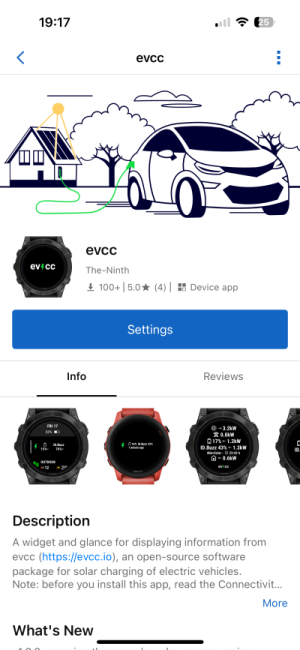
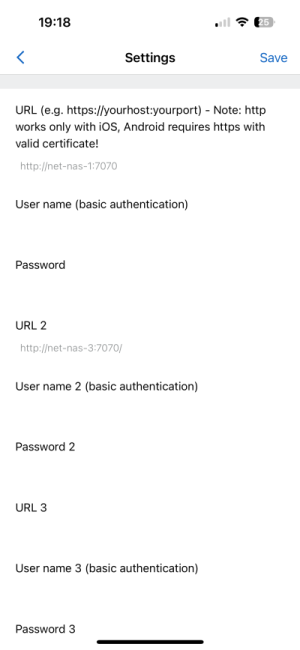
After installing the app, begin by configuring your evcc site.
To access the settings, open evcc in the Connect IQ App:
 |
 |
Sites
Newer devices support multiple sites, whereas older ones can display only one. Refer to the devices section to check your device’s capabilities.
Configure the following settings for each site:
| Setting | Description |
|---|---|
| URL | Enter the URL in the format: https://host:port or http://host:port. HTTP is only supported when your wearable is connected to an iOS device. Refer to the Connectivity section above for details. |
| Username | Username for basic authentication, required if using a reverse proxy or similar setup to access evcc from the Internet. |
| Password | Password for basic authentication. |
| Forecast adjustment | If your site has forecasts enabled, this option corresponds to the “Adjust solar forecast based on real production data” setting in the evcc UI. When activated, the forecast widget will display data adjusted by the scale factor provided by evcc. |
Global Settings
The following settings are applied to all configured sites:
| Setting | Description |
|---|---|
| Refresh interval | The frequency at which new data is requested from your evcc site. The refresh interval can be set between 5 and 60 seconds. If you have multiple sites configured, the currently displayed site will be updated at the configured interval. At the same interval - but offset in time - another site will be updated in a round-robin fashion. |
| Data expiry | When viewing the glance or the widget, data within the expiry time may be shown until new data is retrieved. The expiry time can be set between 5 and 3600 seconds. |
User Interface
The interface consists of widgets and glances. Widgets are full-screen apps with multiple views. On older devices, you cycle through widgets directly from the watch face. On newer devices, glances offer quick access to key information without opening a full app.
Glance
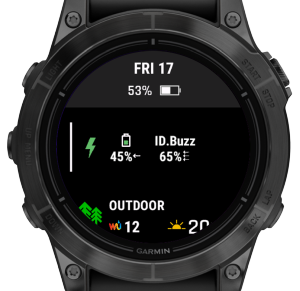
The glance shows an overview of house battery and connected vehicles, with their respective state-of-charges and whether they are currently charging.
If multiple sites are configured, glances will always display data from the last site selected in the widget.
 |
Widget
The widget features a main view displaying key site statistics, along with additional detail views.
This section begins with the following topics:
It then details navigation between site views based on your settings:
- Navigation Flow: one site, launched from glance
- Navigation Flow: multiple sites, launched from glance
Finally, it concludes with an overview of the general system information view:
Keys & Gestures
The following inputs are supported within the widget:
| Input | Action |
|---|---|
| up/down key touchscreen swipe up/down |
Cycle through views at the same level in a carousel format. Page dots represent the total number of views in the carousel and highlight the currently active view. |
| select/enter key touchscreen tap/swipe left |
A solid indicator means that lower-level views are available and can be opened. A dotted indicator means that multiple variants exist for the current view. Pressing the key cycles through them, with the active variant highlighted.  Lower-level view Lower-level view  Multiple variants Multiple variants |
| back key | Navigates back to the previous higher-level view. |
| menu key touchscreen hold |
Pressing the menu key opens the System Info view, if supported by your device. On touchscreen devices, you can also tap and hold the screen to access it. This is especially important for devices without a menu key, such as the Vivoactive 6. |
Site Views
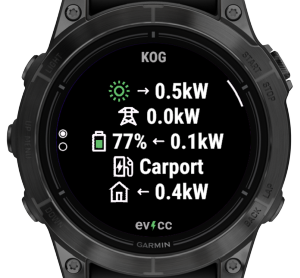
The most important view is the main view of the site:
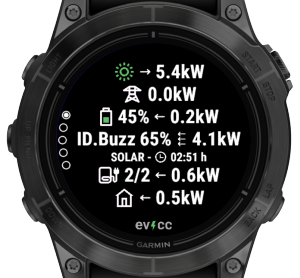 |
The main view shows the basic power flows between PV, grid, battery, load points, and home.
If multiple batteries are present, their data is combined into a single element.
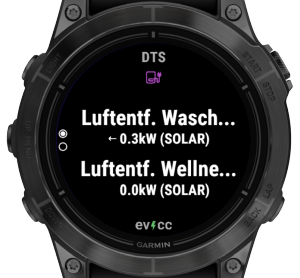
If two or fewer load points are available, they are displayed individually, including their state, charging mode, and power consumption.
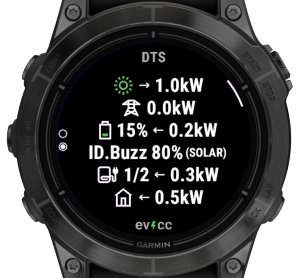
If more than two load points are present, they are grouped into the categories chargers, heaters, and integrated devices. Categories with a single load point are still shown individually. Categories with multiple load points are displayed as a summary, while the individual load points are accessible in the detail views (see below).
The screenshot above illustrates this behavior, showing a single charger load point and two integrated devices grouped together.
In addition to the main view, the following detail views are available:
Loadpoint View(s)
As described above, when more than two load points are present, they may be grouped. A separate load point view is shown for each group. If a group contains more than three load points, it is split across multiple views.
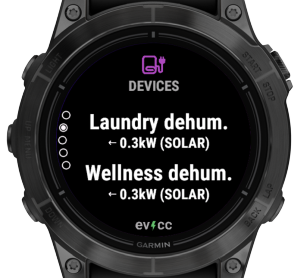 |
The example above shows a group of integrated devices with two load points.
Solar Forecast View
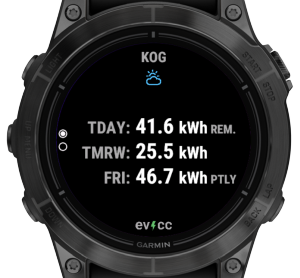
The solar forecast displays the remaining energy for today, tomorrow, and partially for the day after tomorrow. Since data is available for a 48-hour period, the forecast for the day after tomorrow includes values up to the current time.
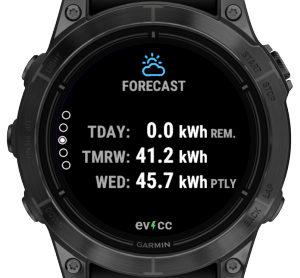 |
The view includes an option equivalent to the “Adjust solar forecast based on real production data” setting in the evcc user interface. When this option is enabled in the Site Settings of the app, the forecast view will display data adjusted using the scale factor provided by evcc. This adjustment is indicated by the label “adj. w/ real data” in the view.
Note for devices using the tiny glance: These devices do not have enough memory to support the glance and background processes handling forecast data. As a result, the full state including the forecast will only be requested when the widget is opened. Since the forecast is optional, the forecast view will be added only after the response is received.
Grid Price View
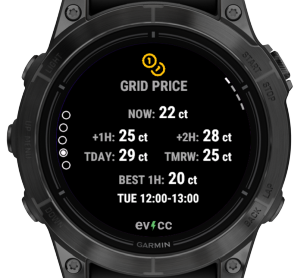
The grid price view is available if your evcc installation has smart costs configured.
It displays:
- NOW: the current energy price
- +1H: the average price over the next 60 minutes
- +2H: the average price from 60 to 120 minutes from now
- TDAY: the average price for the remainder of the day
- TMRW: the average price for the next day
Additionally, you can press the enter button or tap the screen to cycle through the following price periods:
- BEST 1H / 2H / 3H: the average price and time of the cheapest one-, two-, or three-hour window within the covered time frame
- WORST 1H: the average price and time of the most expensive one-hour window within the covered time frame
 |
Statistics View
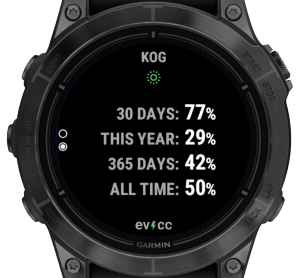
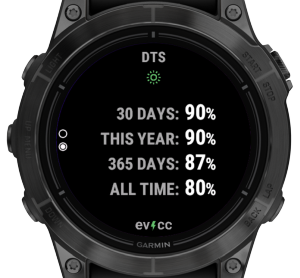
The statistics view displays the percentage of solar energy relative to the total energy consumed across all load points.
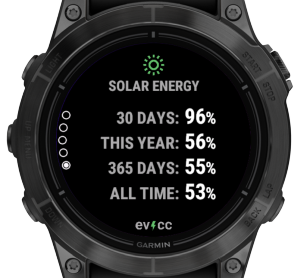 |
Data is presented for four time periods: the last 30 days, year to date, the last 365 days, and the entire period since data collection began.
Navigation Flow with Multiple Sites
If you have multiple sites configured and launch the widget from the glance, you’ll enter a carousel displaying the sites. The site title appears at the top of each view, limited to the first nine characters due to space constraints.
For sites with detail views, an arc indicates the select button to press for access. If supported by the device, a tap or swipe left on the touchscreen can also open these detail views. Pressing the back button will return to the site’s main view.
| Main Views | Detail Views | |
 |
 |
|
|
||
 |
 |
|
|
System Info View
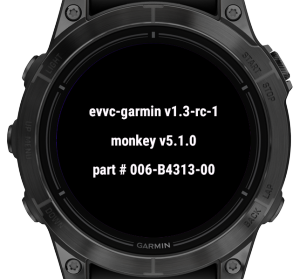
You can open the System Info View from any widget (but not from the glance) by using the menu key or the corresponding touch gesture. For example, on Fenix and Epix wearables, the menu key is accessed by long-pressing the middle button on the left side. On touch-oriented devices, tap and hold the touch screen.
The view shows the evcc-garmin version, the Connect IQ (monkey) version supported by the device, and the device’s part number.6
 |
Error Handling
Errors are displayed only in the views directly affected, ensuring the rest of the app continues to function normally. Examples include:
-
No configured sites: A general error message is shown.
-
Multiple Views per Site: If a site encounters an error, all views associated with that site will display the error.
-
Multiple Configured Sites: If an error (e.g., a connection failure) affects only one site, only that site’s views will show the error. Views for other sites will remain functional.
-
Temporary Errors: If the current state cannot be fetched (e.g., due to a connectivity issue), the glance and widget views will display a previously stored state—provided it is still valid. Detail views will also be generated from the stored state if available. An error message will only be shown if the issue persists after the cached data expires.
-
Glance view: When multiple sites are configured, the glance view displays only general errors or errors related to the currently displayed site.
Supported Devices
The table below lists supported devices along with their capabilities. Click on a column header to learn more about a specific property.
Note: With legacy devices moved to a separate app, all supported devices now share the full feature set. The only difference is the font type. This table remains for potential device-specific details in future features.
| Watch | Fonts | Notes |
|---|---|---|
| approachs50 | Static‑Opt | |
| approachs7042mm | Vector | |
| approachs7047mm | Vector | |
| d2airx10 | Static‑Opt | |
| d2mach1 | Vector | |
| d2mach2 | Vector | |
| d2mach2pro | Vector | |
| descentg2 | Static | |
| descentmk343mm | Vector | |
| descentmk351mm | Vector | |
| enduro3 | Vector | |
| epix2 | Vector | |
| epix2pro42mm | Vector | |
| epix2pro47mm | Vector | |
| epix2pro51mm | Vector | |
| fenix7 | Vector | |
| fenix7s | Vector | |
| fenix7x | Vector | |
| fenix7pro | Vector | |
| fenix7pronowifi | Vector | |
| fenix7spro | Vector | |
| fenix7xpro | Vector | |
| fenix7xpronowifi | Vector | |
| fenixe | Vector | |
| fenix843mm | Vector | |
| fenix847mm | Vector | |
| fenix8solar47mm | Vector | |
| fenix8solar51mm | Vector | |
| fenix8pro47mm | Vector | |
| fenix943mm | Vector | |
| fenix947mm | Vector | |
| fenix9pro43mm | Vector | |
| fenix9pro47mm | Vector | |
| fenix9pro51mm | Vector | |
| fenix9prosolar47mm | Vector | |
| fenix9prosolar51mm | Vector | |
| fr165 | Vector | |
| fr165m | Vector | |
| fr255 | Static | |
| fr255m | Static | |
| fr255s | Static‑Opt | |
| fr255sm | Static‑Opt | |
| fr265 | Vector | |
| fr265s | Vector | |
| fr57042mm | Vector | |
| fr57047mm | Vector | |
| fr955 | Vector | |
| fr965 | Vector | |
| fr970 | Vector | |
| instinct3amoled45mm | Static | |
| instinct3amoled50mm | Static | |
| instinctcrossoveramoled | Static‑Opt | |
| marq2 | Vector | |
| marq2aviator | Vector | |
| venu2 | Static‑Opt | |
| venu2plus | Static‑Opt | |
| venu2s | Static‑Opt | |
| venu3 | Vector | |
| venu3s | Vector | |
| venux1 | Vector | |
| venu441mm | Vector | |
| venu445mm | Vector | |
| venusq2 | Static‑Opt | |
| venusq2m | Static‑Opt | |
| vivoactive5 | Static‑Opt | |
| vivoactive6 | Vector |
Fonts
The app offers five font sizes and selects the most suitable one based on the content being displayed. The way these font sizes are determined depends on the device:
| Fonts | Description |
|---|---|
| Vector | If the device supports vector fonts, the five sizes are evenly distributed from largest to smallest for a balanced appearance. |
| Static | On devices without vector font support, predefined font sizes must be used (medium, small, tiny, glance, xtiny). This can result in uneven size differences, such as a larger gap between the largest and second-largest font than between the smallest ones. |
| Static‑Opt | “Opt” stands for optimized. On some devices, certain adjacent font sizes may be identical (e.g., small and tiny could appear the same). In such cases, duplicate sizes are removed, effectively increasing the range of distinct font sizes available for better content display. |
Troubleshooting
This section outlines common errors that may occur. If you’re unable to resolve an issue, feel free to seek support.
Request Failed
If you encounter a “Request Failed” error in the app, the error code can help determine the cause:
- Positive error codes correspond to HTTP response codes returned by the server.
- Negative error codes indicate Garmin Connect IQ SDK errors. For a comprehensive documentation of these codes, visit this page and scroll to the Constant Summary section.
Here is a breakdown of common “Request Failed” error codes:
| Code | Symbol | Description |
|---|---|---|
| -1001 | SECURE_CONNECTION_REQUIRED | This error occurs when attempting to use an unencrypted HTTP URL on Android. It may also appear if Garmin does not accept the certificate of your server. |
| -300 | NETWORK_REQUEST_TIMED_OUT | While this may indicate the server is unreachable, it can also mean the Garmin Connect app lacks necessary permissions. On iOS, check if the Local Network permission is enabled in the device settings for the Connect app. |
| -403 | NETWORK_RESPONSE_OUT_OF_MEMORY | This error suggests that the watch does not have enough memory to process the response from evcc. If you encounter this issue, please contact the developer. |
| -202 | INVALID_HTTP_METHOD_IN_REQUEST | This error may indicate that your device does not support the query string used in evcc requests to minimize response size. It has been observed on some iOS 16 devices. The issue should be resolved in app version v1.3, but if it persists, please contact the developer. |
Other Errors
Some other common errors are:
| Error | Description |
|---|---|
| expected Number/Float/Long/Double | This error may occur if you’re using an older version of the app to access an evcc instance running version 0.133.0 or later. Ensure you have the latest version of the app installed. In some cases, the Connect IQ app may install an outdated version despite a newer one being available. If this happens, try uninstalling and reinstalling the app. |
Help & Support
You can get help by posting in this thread on the evcc forum or by reaching out to the developer via the Contact Developer link on the app’s Connect IQ Store page.
Changelog
| Version | Changes |
|---|---|
| v2.0.2 | Fixed select button indicator alignment on Forerunner 165, 265, 570, 965, and 970 models ticket #171 |
| v2.0.1 | Added support for Forerunner 70, 170, and 170 Music ticket #168 |
| v2.0.0 | Improved support for a larger number of loadpoints Added support for all smartwatches with CIQ 5.0.0+ and sufficient hardware resources (Approach, D2, Descent, Enduro, MARQ, …) Dropped support for devices with earlier CIQ versions or insufficient hardware resources. These will continue to be supported in the new evcc Legacy app Improved support for watches with rectangular screens (Venu Sq 2, Venu Sq 2 Music, Venu X1) Forecast adjustment based on real data is now disabled by default and can be enabled in the app settings. Minor UI fixes |
| v1.4.4 | Fixed an issue where the battery status was no longer displayed due to a breaking change in evcc 0.301.0. ticket #129 Added support for the newly released Fenix 8 Pro, Forerunner 970, and Venu 4 models ticket #131 Updated to Garmin Connect IQ SDK 8.4.1. ticket #130 |
| v1.4.3 | Added support for the newly released Venu X1 ticket #128 Updated to handle an upcoming breaking change in the evcc REST API ticket #127 |
| v1.4.2.1 | Fixed an issue where the state did not persist correctly, causing a “Loading” message to appear when opening the widget ticket #126 |
| v1.4.2 | Improved performance of glance rendering ticket #109 Enhanced support for integrated devices ticket #113 Fixed an issue with the statistics JSON that could cause the app to crash ticket #112 |
| v1.4.1 | Fixed incorrect spacing in glance view ticket #111 |
| v1.4 | Added a new statistics view displaying the percentage of solar energy used. Improved performance by pre-rendering views in the background, resulting in faster view transitions. Added support for the newly releas33ed Forerunner 165 / 165 Music and Vivoactive 6. Updated feature compatibility for Fenix 6 and the Vivoactive 3 / 3 Music / 3 Music LTE. See Supported Devices for full details. Removed forecast and statistics querying from tiny glance. As a result, on devices using tiny glance, the widget may take a second or two after launch to fetch the full state and display the forecast view. Upgraded to Garmin Connect IQ SDK 8.1.1. |
| v1.3.3 | Fixed an unexpected TypeError that occurred after updating to v1.3.3 on certain devices. Affected models include: Fenix 6 / 6 Pro, Forerunner 745 / 945, and Vivoactive 3 (Issue #6). |
| v1.3.2 | Fixed issue on Vivoactive 4 where the wrong site opened in multi-site setups (Issue #4). Added tap hint for Vivoactive 3 / 4 (Issue #2) Improved content centering between the page indicator and button or tap hints Enhanced vertical spacing for better screen balance with excess whitespace(Issue #3) |
| v1.3.1 | Fixed an issue where swiping left triggered a page down on some devices Fixed incorrect display of the page indicator when showing the forecast for the first time Added a jq filter to remove all empty fields, reducing memory usage Added a property for vector font face selection, allowing per-device customization Refactored resource management for improved maintainability |
| v1.3 | Added forecast view Introduced support for additional views, enabling future extensions Optimized memory usage Enhanced UI engine, including improved font selection ATTENTION: This update requires you to re-enter your settings. Please ensure you have them noted down beforehand. |
| v1.2.2 | added system info view (opened by menu key) |
| v1.2.1 | improved error handling |
| v1.2 | added support for new REST API structure (grid data) of upcoming evcc versions. Upgraded to Garmin Connect IQ SDK 7.4.3 |
| v1.1.1 | Refinement of UI engine |
| v1.1 | Added support for heater loadpoints in widget mode, with display of temperature and power consumption |
| v1.0 | First stable version |
GitHub
You can find the GitHub repository here: METIQ-Solutions/evcc-garmin.
The project’s README.md provides an overview of the structure and includes additional information to help you better understand the codebase.